VideoFit Pro app icon
On the Mac App Store

One video in.
Every format out.

Eight video tools that don't need a timeline.

Reframe a landscape clip for Stories without black bars. Blur every face before it goes public. Cut a long recording into scenes. Drop the background out with no green screen. VideoFit Pro does the jobs a full editor makes you build a project for — drag a file in, pick a mode, export.

8
Modes
27
Export presets
Batch size
0
Uploads
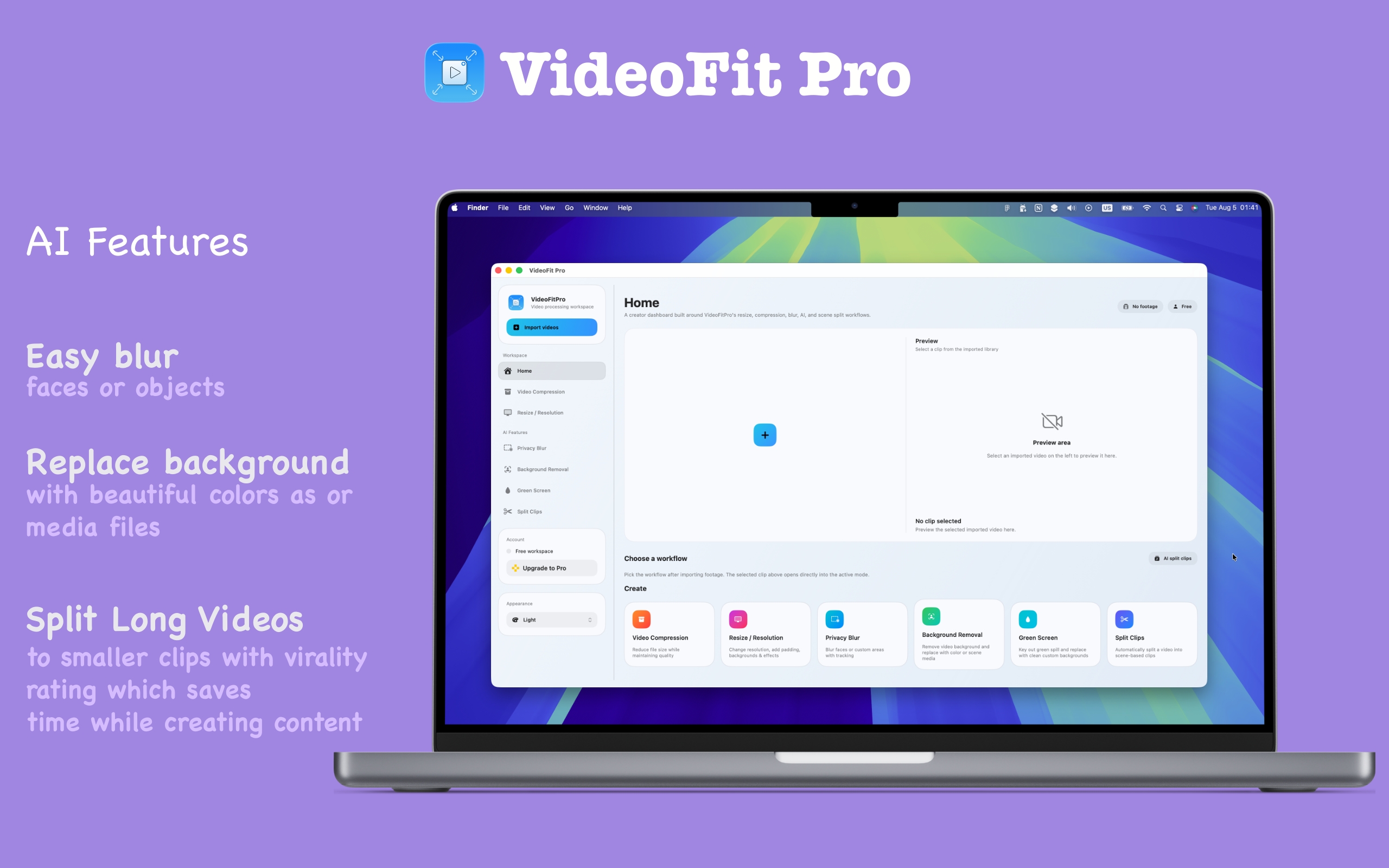
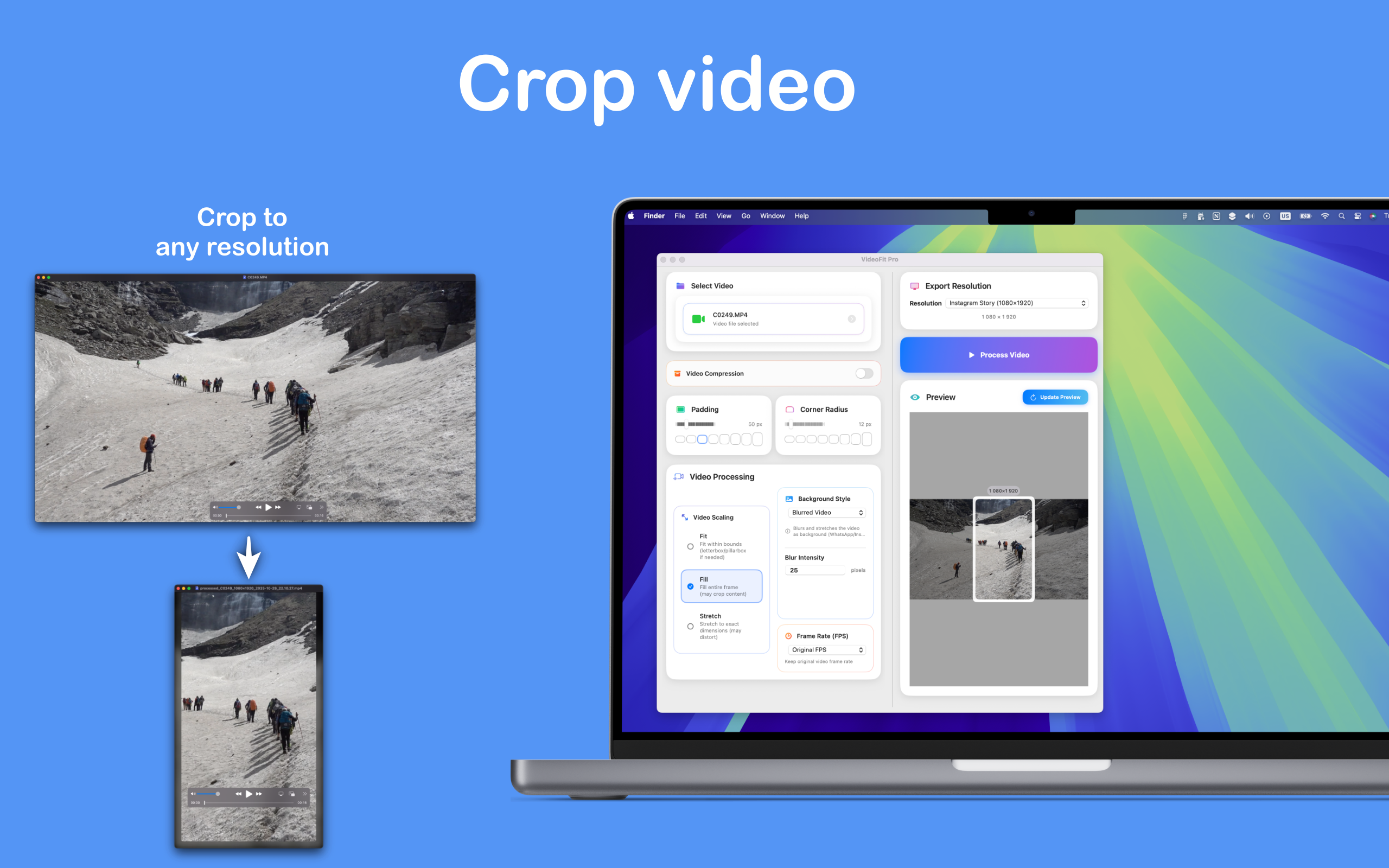
VideoFit Pro's main window with export resolution, video processing and live preview panels
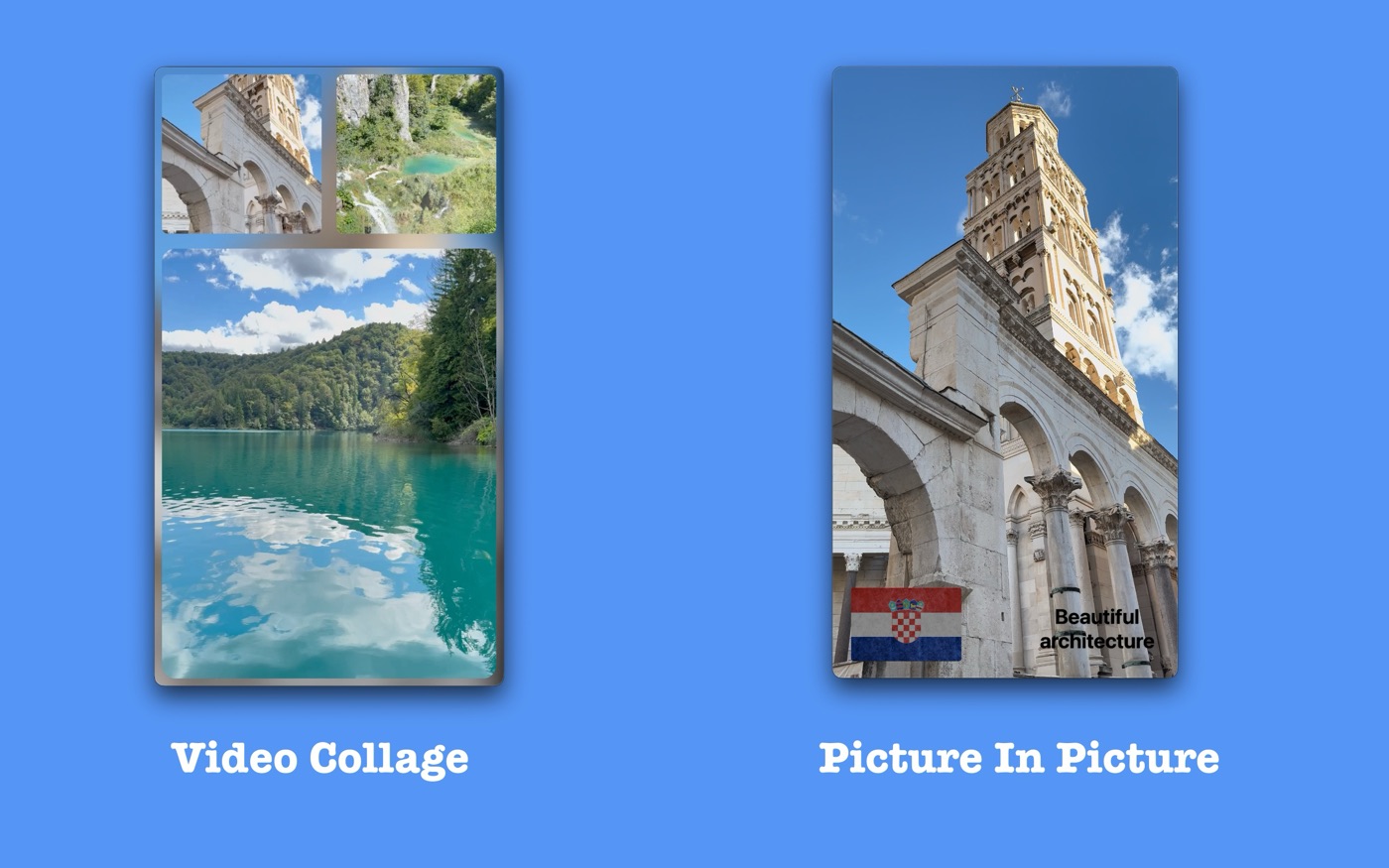
A four-cell video collage beside a picture-in-picture layout with a flag and caption layered over the clip
A vertical video reframed to landscape with a blurred version of itself as the background
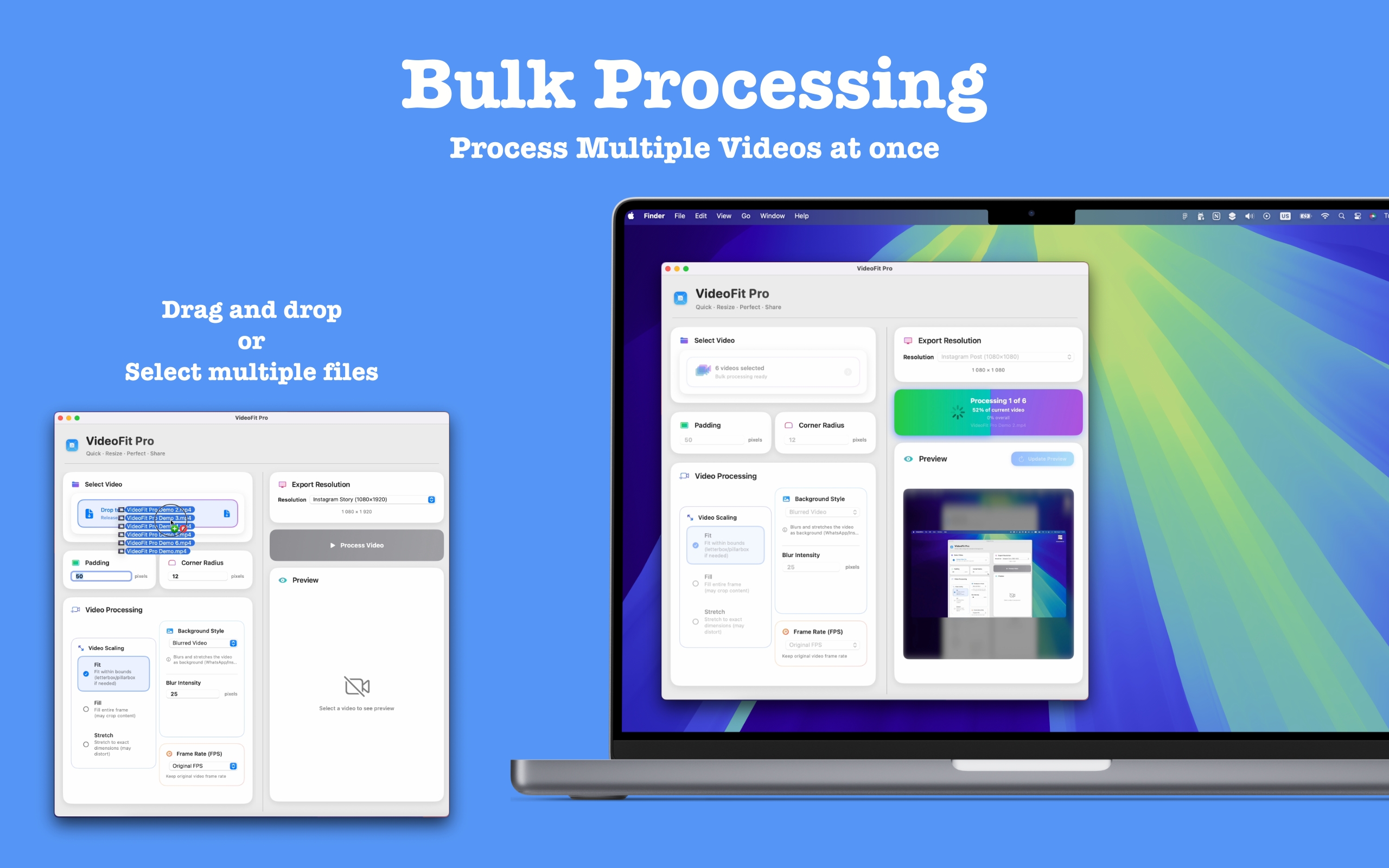
Several video files queued for batch processing in VideoFit Pro

Eight modes. Pick one and go.

Each mode is a whole small app with its own preview and its own settings. Nothing to set up, no project file to manage.

🖥️

Resize & Resolution

Change resolution, add padding and corner radius, and fill the gaps with a background instead of black bars.

🗜️

Compression Pro

Bring a file's size down without visibly costing you quality — for email, for upload limits, for a slow connection.

🫥

Privacy Blur Pro

Blur faces or any region you draw, and the blur follows the subject through the shot.

🪄

Background Removal Pro

Cut the subject out and put a colour, an image or another clip behind them. No green screen needed.

💧

Green Screen Pro

Key out green properly, including the spill along the edges, and replace it with something clean.

✂️

Split Clips Pro

Detect where the scene changes and cut a long recording into separate clips automatically.

🖼️

Picture in Picture

Layer text, photos and other videos over the base clip on a timeline, each with its own timing.

Video Collage

Combine several videos into one frame — auto-arranged, or in any of a dozen fixed layouts.

Black bars are a choice, and it's the wrong one.

The original job VideoFit Pro was built for: making a video the right shape for wherever it's going, without cropping the subject out of frame.

A vertical clip centred in a landscape frame, with a blurred copy of itself filling the sides
🌫️
Four kinds of background

Fill the empty space with a blurred copy of the video, a scaled-up copy, a solid colour, or any image you drop in. Blur intensity, padding and corner radius are all yours to set.

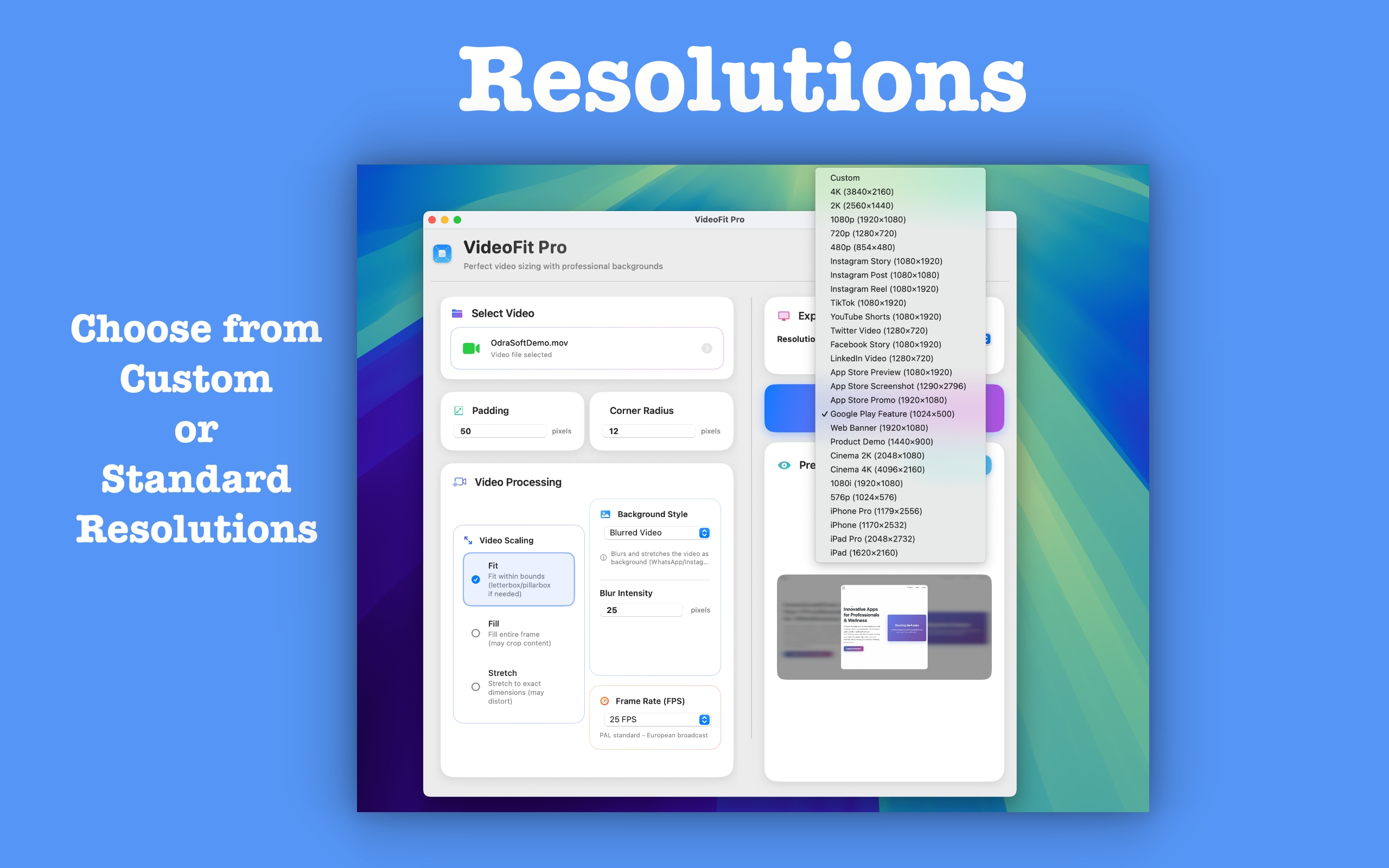
VideoFit Pro's export resolution picker
📐
27 presets, or your own numbers

Stories, Reels, TikTok, Shorts, LinkedIn, App Store previews, Cinema 4K, iPad Pro — or type an exact size. Fit, Fill or Stretch decides how the video sits inside it.

🎯
Follow the subject

Reframing a wide shot to vertical usually means cropping someone's head off. Turn on follow-subject and the crop tracks them through the shot — Gentle, Balanced or Aggressive, depending on how much camera motion you want.

🚀
Export to every size at once

Tick the platforms you publish to and one export run produces all of them, each file tagged with its platform name. One edit, a folder full of correctly-sized outputs.

VideoFit Pro's crop tool with aspect ratio handles
🔲
Crop and frame rate

Crop to a common ratio or drag your own box to cut out distractions. Set the output frame rate to 24, 25, 30, 50 or 60 while you're there.

Multiple videos selected for batch processing
📁
Whole folders at a time Pro

Drop in a stack of files or a folder, apply the same settings to all of them, and walk away.

The jobs that used to need a specialist.

Four modes built on Apple's on-device vision frameworks. Your footage is processed on your Mac and never uploaded anywhere.

VideoFit Pro's processing panel with background style, scaling mode and frame rate controls
🫥
Privacy Blur, with tracking Pro

Detect faces automatically, pixelate just the eyes, or draw your own rectangles and ovals over anything that shouldn't be public. Choose Gaussian blur, pixelate, crystalize, frosted glass, motion blur or a solid mask — and blur all faces, the largest, the most central, or only the ones you pick.

🪄
Background Removal Pro

Lift the subject off whatever is behind them and drop in a colour, a photo or a whole other clip. Works on footage shot anywhere, with no green screen involved.

💧
Green Screen keying Pro

If you did shoot on green, this mode keys it properly and cleans up the spill along the edges at Light, Medium or Strong — the part cheap keyers always get wrong.

✂️
Split by scene Pro

Point it at a long recording and it finds where the scenes change, then writes out each one as its own clip. An hour of footage becomes a folder of usable pieces.

Layer it, grid it, score it.

A video collage next to a picture-in-picture composition
Collage & picture-in-picture

Put several clips in one frame — auto-arranged, or in a fixed layout like 2×2, three columns, or full-left-plus-two-right. Or stack layers instead: text, photos and videos over the base clip, each with its own place on the timeline.

🔊
Audio toolkit

Mute or ride the level of the original track, add fades at the edges, mix a music bed underneath, or pull the audio out as an M4A.

🏷️
Brand overlay

Drop your own mark into any of nine positions and keep it consistent across everything you publish.

💾
Project presets

Save a whole configuration — sizes, background, follow-subject, export platforms — and use it again next week without rebuilding it.

👁️
Live preview

Every setting updates a real preview before you commit to an export, so you find out how it looks now rather than after a five-minute render.

The sizes you were about to look up.

Instagram Story 1080×1920 Instagram Post 1080×1080 Instagram Reel 1080×1920 TikTok 1080×1920 YouTube Shorts 1080×1920 Facebook Story 1080×1920 Twitter 1280×720 LinkedIn 1280×720 App Store Preview 1080×1920 App Store Promo 1920×1080 App Store Screenshot 1290×2796 Google Play Feature 1024×500 Web Banner 1920×1080 Product Demo 1440×900 4K 3840×2160 2K 2560×1440 1080p 720p 480p Cinema 4K 4096×2160 Cinema 2K 2048×1080 iPhone Pro 1179×2556 iPad Pro 2048×2732 + any custom size

Four steps, no project file.

1

Drop the video in

One file, several, or a whole folder. MP4, MOV, AVI, MKV and M4V all work.

2

Choose a mode

Resize, compress, blur, remove the background, key green, split, layer or collage.

3

Watch the preview

Adjust until it looks right. The preview reflects the real output, not an approximation.

4

Export

One size, or every platform you publish to in a single run.

Formats, hardware and where your footage goes.

🎞️ Formats & output

  • Reads MP4, MOV, AVI, MKV and M4V
  • Output frame rate: 24, 25, 30, 50 or 60
  • Any resolution up to 8192 × 8192
  • Audio out as M4A when you only want the sound

🖥️ Requirements

  • macOS, distributed through the Mac App Store
  • Hardware-accelerated encoding, so exports use the chip you paid for
  • Free disk space of roughly twice the source file while processing

🛡️ Privacy

  • Sandboxed, and every mode runs locally on your Mac
  • Face detection, background removal and scene detection use Apple's on-device frameworks
  • No footage is uploaded, and there is no account to create

Free to try. Pro to publish.

Everything is usable before you pay — free exports carry a small "Made with VideoFit Pro" mark, and the heavier tools are Pro.

Free
$0
No time limit

Resize and reframe with every background type and all 27 presets, crop, frame rate, picture-in-picture, video collage, the audio toolkit, brand overlay and live preview. Exports carry a watermark.

Download VideoFit Pro on the Mac App Store

Questions people actually ask.

Is this a video editor?

Deliberately not. There's no timeline to learn and no project to manage — you drag a file in, pick the job you need doing, and export. If you need to cut a narrative together, use a real editor. If you need the same clip in six sizes with the faces blurred by Friday, this is faster.

Does my footage get uploaded for the AI features?

No. Face detection, background removal, green screen keying and scene detection all run on your Mac using Apple's on-device vision frameworks. The app is sandboxed and nothing is sent anywhere.

What does the free version actually give me?

Resizing and reframing with all four background types and all 27 export presets, cropping, frame-rate control, picture-in-picture, collage, the audio toolkit and live preview. Exports carry a small "Made with VideoFit Pro" mark, and the six Pro modes are locked.

Can it reframe without cutting people's heads off?

Yes — that's what follow-subject does. It tracks the subject through the shot and moves the crop with them, smoothed so the framing glides rather than jitters. Pick Gentle, Balanced or Aggressive depending on how much movement you'll tolerate.

Can I process a whole folder at once?

Drop in multiple files or a folder, set your options once, and every file gets them. Batch processing is a Pro feature.

Do I have to export each platform size separately?

No. Turn on multi-platform export, tick the platforms you publish to, and one run produces all of them — each output file tagged with its platform name so same-size presets don't overwrite each other.

Subscription or one-time purchase?

Either. Pro is available as a monthly subscription or a one-time lifetime purchase through the Mac App Store. The lifetime option includes Pro features added in future updates.

Stop resizing videos by hand.

Eight tools, one drag-and-drop window, and everything stays on your Mac.